

Automations
Automations handle repetitive project work so your team can focus on the work that matters. Instead of manually closing stale issues, archiving completed work, or nudging assignees about deadlines, you set up rules once and let Plane run them.
There are two kinds of automations:
Default automations come built into every project. They cover the most common housekeeping tasks — archiving completed work items, closing stale ones, and sending due date reminders — and you configure them with a single time-based setting.
Custom automations are rules you build yourself. You choose a trigger, optionally add conditions to narrow scope, then define what happens. They run at either the project level or the workspace level. See Custom automations.
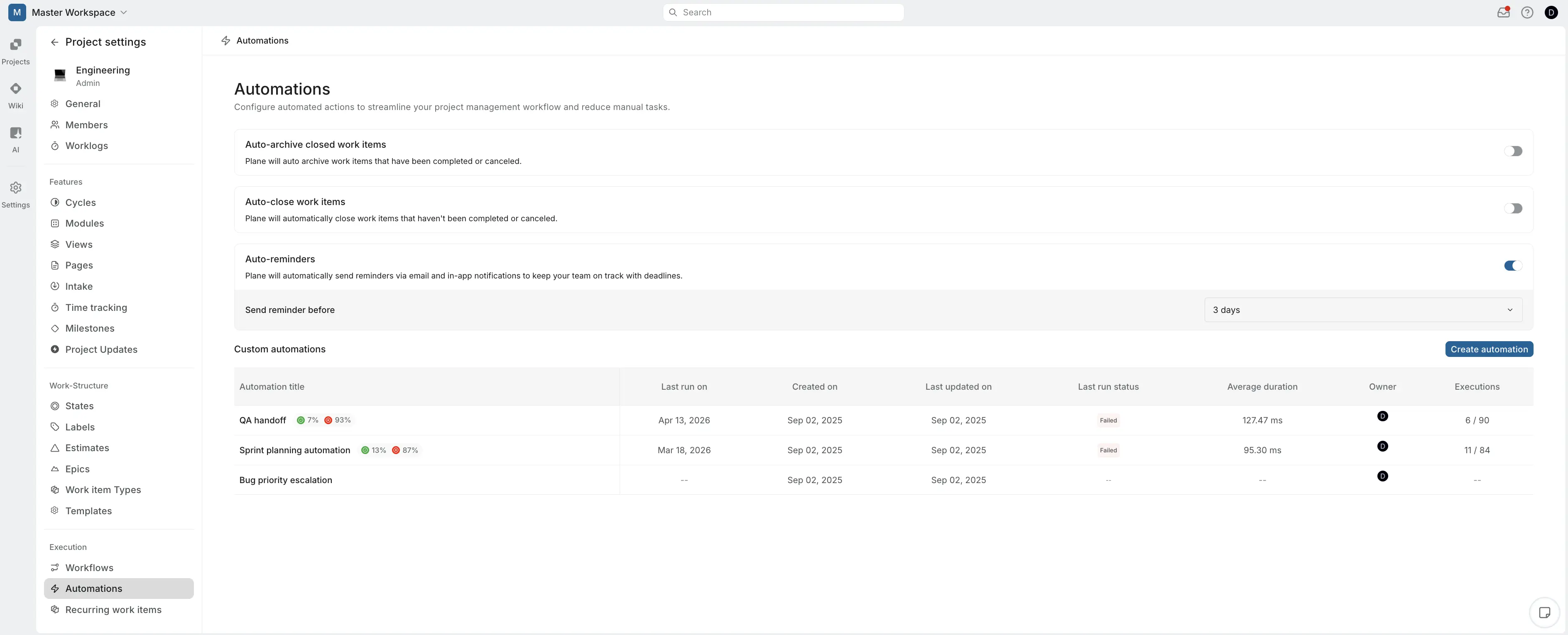
Set up default automations
Auto-archive completed work items
Auto-archive moves work items that have been sitting in a completed or cancelled state into an archived state.
- Navigate to Project Settings → Automations.
- Toggle on Auto-archive closed work items.
- Set the Auto-archive work items that are closed for duration. Options include 1 month, 3 months, 6 months, 9 months, 12 months, or a custom time range.
Once enabled, work items that have been in a completed or cancelled state for longer than the configured duration are archived automatically. Archived work items remain searchable and accessible in the project's archived view, but they no longer appear in active lists, boards, or spreadsheets.
INFO
Work items in active cycles or modules won't be archived even if they've been completed for longer than your threshold.
Auto-close stale work items
Auto-close moves unfinished work items — those in Backlog, Unstarted, or Started states — to a closed/cancelled state after a period of inactivity. This prevents stale work items from cluttering your project indefinitely.
- Navigate to Project Settings → Automations.
- Toggle on Auto-close work items.
- Set the Auto-close work items that are inactive for duration — for example, 1 month.
- Choose the Auto-close status — the state that inactive work items will be moved to (e.g., Cancelled).
Set up due date reminders Enterprise Grid
Plane sends in-app and email notifications to assignees and subscribers when a work item's due date is approaching.
- Navigate to Project Settings → Automations.
- Toggle on Auto-reminders.
- Set the Send reminder before timing — for example, 3 days before the due date.
Only work items with a due date and at least one assignee or subscriber trigger reminders.
Plane sends one reminder per window — not a daily flood. If you've set a 3-day reminder and the due date is 3 days away, each person gets one notification.